Workflow Management Dashboard
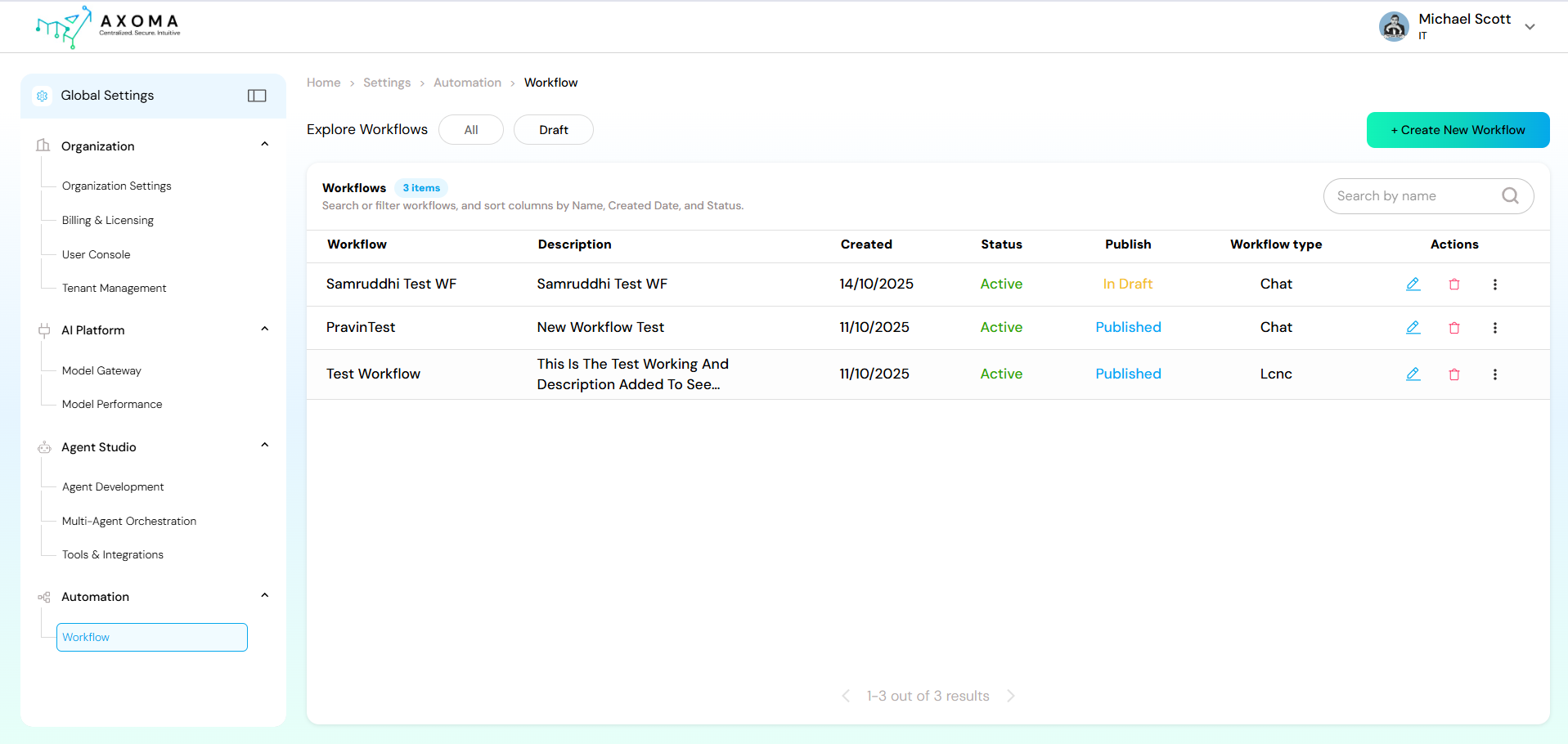
The Workflow Dashboard serves as the central hub for managing all existing workflows. Users can create, edit, publish, or monitor automation processes from one interface.| Feature | Description |
|---|---|
| Workflow List | Displays all available workflows with key details including Name, Description, Created Date, Status (Active/Inactive), Publish State (Draft/Published), and Workflow Type (Chat, LCNC, etc.). |
| Create New Workflow | Opens a new workflow design canvas for building automation from scratch. |
| Search & Filter | Allows searching workflows by name or filtering by status, publish state, or creation date. |
| Actions | Quick access options such as Edit, Delete, View Runs, Schedule Flow, Open in Playground, and Publish/Unpublish. |
Create a Workflow
Click Create New Workflow to enter the Workflow Playground a visual design environment where automation logic is built using pre-defined components.1. Open the Playground
- Click Create New Workflow or select an existing workflow to modify.
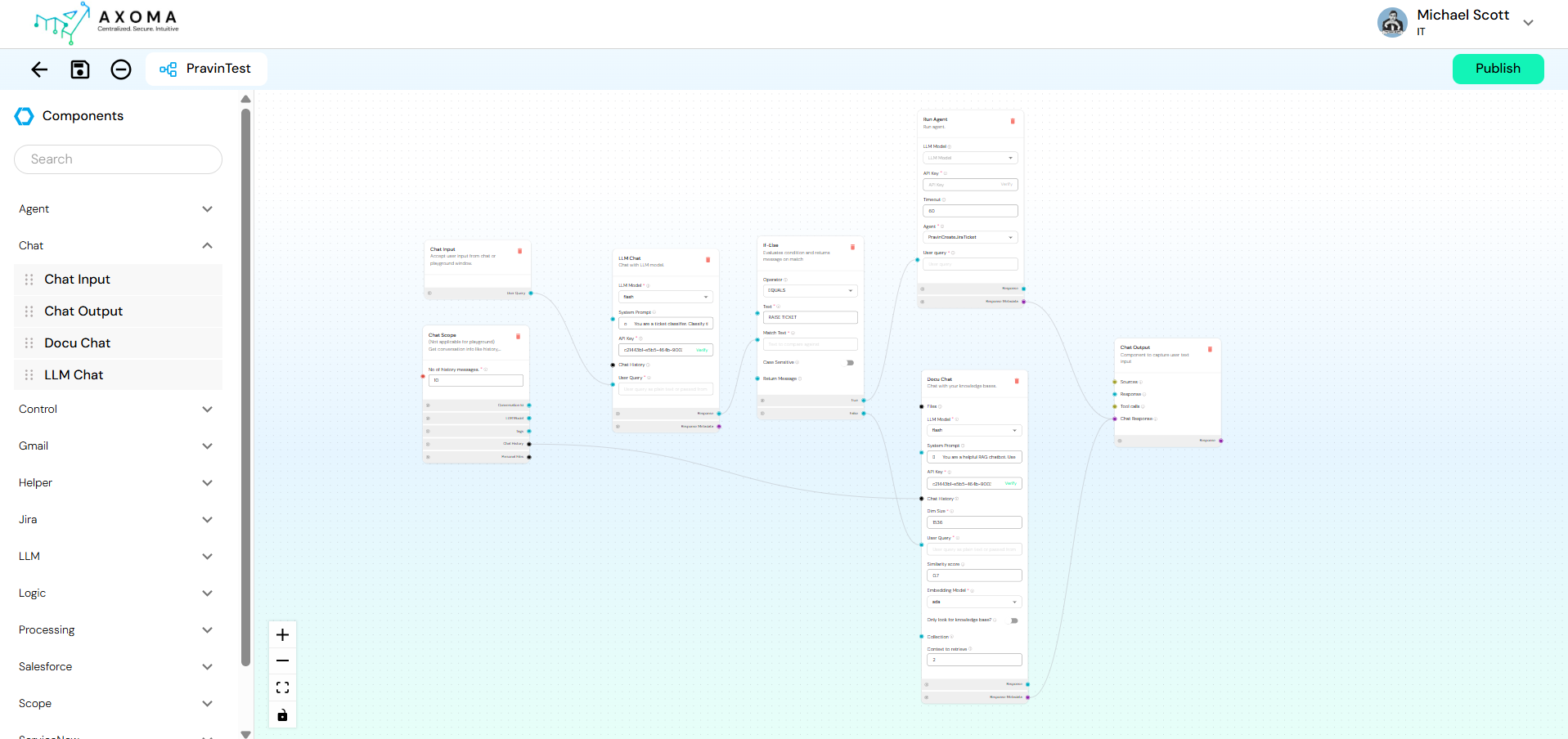
- The visual canvas opens, displaying a Components Panel on the left and a Design Canvas in the center.
2. Drag Components
- From the left-hand Components Panel, drag and drop desired components (e.g., Chat Input, If-Else, DocuChat, Run Agent, etc.) onto the canvas.
3. Connect Components
- Use arrows to connect output fields of one component to input fields of another.
- The flow defines the execution order and data mapping between steps.
4. Configure Each Component
- Click on a component to open its configuration panel.
- Fill required fields such as API Key, Model Selection, Query, or Condition Parameters.
5. Test & Publish
- Use the Preview/Run feature to test your workflow.
- Click Publish when ready to make it active.
Workflow Components
Each component in the Components Panel plays a specific role. They are grouped into functional categories for easy navigation.Component Categories Overview
| Category | Description |
|---|---|
| Agent | Manages AI agent execution inside workflows. |
| Chat | Manages conversational flow between user input, LLM response, and chat output. |
| Control | Adds logical flow control like loops or sequence continuations. |
| Gmail | Handles Gmail-related operations for reading, replying, or sending emails. |
| Helper | Provides small but essential utilities like generating IDs or fetching timestamps. |
| Jira | Automates Jira ticket management and issue tracking. |
| LLM | Handles tasks related to language models, such as creating embeddings or model calls. |
| Logic | Implements conditional flow using If-Else branches. |
| Processing | Data manipulation and transformation utilities. |
| Salesforce | Integrates Salesforce cases for CRM automation. |
| Scope | Defines data scope such as chat or app-level context. |
| ServiceNow | Automates incident management and ticket updates. |
| Variables | Stores and reuses static or dynamic input values. |
Component Details
Agent
Agent
| Component | Description | Key Configurations |
|---|---|---|
| Run Agent | Executes a predefined agent created in Agent Studio. | Select Agent Name, LLM Model, provide API Key, and configure Timeout if needed. |
Chat
Chat
| Component | Purpose | Description |
|---|---|---|
| Chat Input | Entry point | Captures user queries or inputs to initiate workflow execution. |
| Chat Output | Exit point | Displays or returns the final AI response to the user. |
| DocuChat | Knowledge-based chat | Integrates document-based chat powered by a connected knowledge base. Includes settings for Similarity Score, Embedding Model, and Knowledge Base Selection. |
| LLM Chat | Model interaction | Routes input through a selected LLM model. You can define System Prompt, User Query, API Key, and Model Type. |
Scope
Scope
| Component | Description |
|---|---|
| App Scope | Defines global data scope for app-level variables. |
| Chat Scope | Manages conversational history and session-level variables. |
Control
Control
| Component | Purpose |
|---|---|
| Loop | Executes a defined set of actions repeatedly based on a condition. |
| Next (Continue) | Defines sequential flow to continue execution after a previous step. |
Helper
Helper
| Component | Description |
|---|---|
| Current Datetime | Fetches current date and time dynamically. |
| ID Generator | Generates unique identifiers for records, messages, or transactions. |
LLM
LLM
| Component | Description |
|---|---|
| Create Embedding | Generates embeddings for text data to use in retrieval or semantic search workflows. |
Logic
Logic
| Component | Description |
|---|---|
| If-Else | Adds conditional branching logic. For example: If the LLM output = “Raise Ticket”, then route to Jira Create Issue; else continue chat. |
Processing
Processing
| Component | Description |
|---|---|
| Merge Data | Combines data from multiple sources. |
| Combine Text | Merges multiple text fields into one. |
| Data to DataFrame | Converts structured data into a dataframe format for advanced manipulation. |
| RegEx Extractor | Extracts specific patterns using regular expressions. |
Gmail
Gmail
| Component | Purpose |
|---|---|
| Draft Gmail | Creates a draft email within a connected Gmail account. |
| Gmail Extractor | Extracts email metadata such as sender, subject, or date. |
| Read Gmail | Reads the contents of emails from the inbox based on filters. |
| Reply Gmail | Sends a reply to a specific email thread. |
| Send Gmail | Sends new emails to specified recipients. |
Jira
Jira
| Component | Description |
|---|---|
| Create Jira Issue | Creates a new issue/ticket in Jira. |
| Jira Ticket Extractor | Extracts relevant details from Jira tickets. |
| Jira Read Issues | Fetches issue data from Jira based on filters. |
| Jira Update Issues | Updates existing Jira tickets (status, description, etc.). |
SalesForce
SalesForce
| Component | Description |
|---|---|
| Create Case | Creates a new case in Salesforce. |
| Get Multiple Cases | Retrieves a list of cases. |
| Get Single Case | Fetches details of a specific case. |
ServiceNow
ServiceNow
| Component | Description |
|---|---|
| App Scope | Defines global data scope for app-level variables. |
| Chat Scope | Manages conversational history and session-level variables. |
Variable
Variable
| Component | Description |
|---|---|
| Static Input | Defines fixed input variables (constants) for reuse across the workflow. |
Workflow Execution Flow
A workflow executes step by step, following the defined connections:- Input: Captured via Chat Input or API trigger.
- Processing: Handled by LLMs, Agents, or external integrations.
- Logic Handling: Decisions made by If-Else or Loop components.
- Output: Final message displayed via Chat Output or logged in connected systems.
Best Practices
- Keep workflows modular reuse existing templates for common automations.
- Validate each node before publishing.
- Use naming conventions (e.g., “WF_SupportTicket”) for clarity.
- Regularly review published workflows for optimization.

